
Switching to a new password manager can feel overwhelming. You might worry about losing your saved passwords or spending hours re-entering them one by one.
But what if you could move all your passwords quickly and securely without the hassle? In this guide, you’ll discover simple, step-by-step methods to migrate your passwords to a new password manager with confidence. By the end, you’ll have a clear path to keep your online accounts safe and easily accessible — so you can focus on what really matters.
Ready to make your password switch smooth and stress-free? Let’s dive in.

Choose Your New Manager
Picking the right password manager is a key step in migrating your passwords. Each manager offers different tools and levels of security. This choice affects how easy and safe your password migration will be.
Think about what you need most. Ease of use? Strong protection? Compatibility with your devices? These factors help narrow down your options.
Compare Features And Security
Look at the main features each password manager offers. Some provide password generation, secure sharing, or automatic backups. Check if the manager supports multi-factor authentication for extra safety.
Security is crucial. Choose a manager that uses strong encryption methods. End-to-end encryption ensures only you can see your passwords. Also, see if the company has a good reputation for privacy and security.
Check Compatibility With Devices
Make sure your new password manager works on all your devices. Whether you use Windows, macOS, Android, or iOS, the manager should support them. Also, check if it integrates with your favorite browsers for easy password filling.
Some managers offer cloud syncing to keep your passwords updated across devices. Confirm this feature if you use multiple gadgets. Compatibility ensures a smooth transition and daily use.
Backup Your Current Passwords
Backing up your current passwords is the first step in migrating to a new password manager. This process ensures you have a safe copy of all your login details. Saving your passwords prevents data loss during the switch. It also makes the transfer smooth and stress-free.
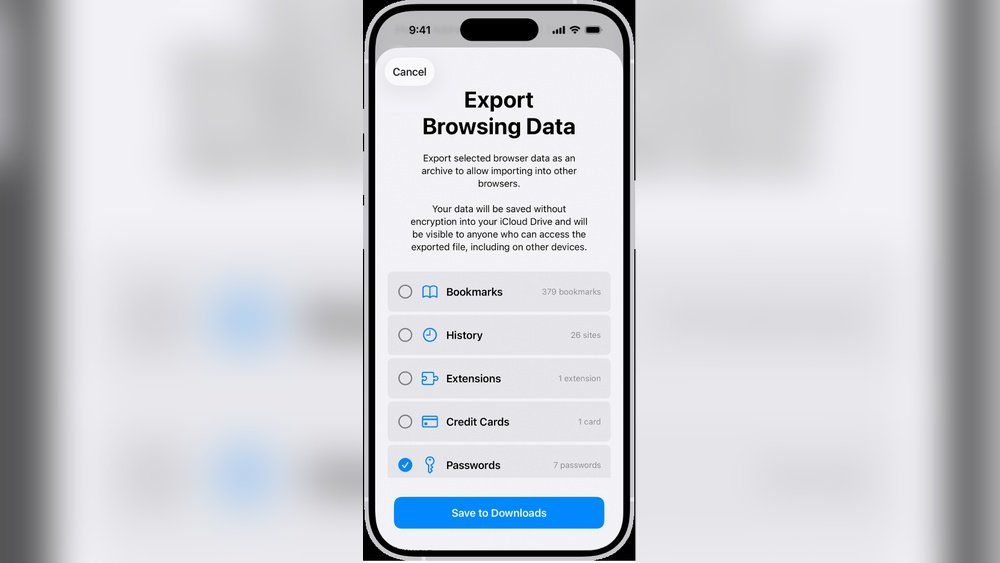
Start by exporting your passwords from the old manager. Then, keep the exported file secure. These steps protect your sensitive information from theft or accidental exposure.
Export Passwords To Csv
Most password managers allow exporting passwords as a CSV file. This file format is simple and widely supported. To export, open your password manager’s settings or tools menu. Find the export option and select CSV as the format. You may need to enter your master password to confirm the action. Save the CSV file to a location you can easily access later.
Check the exported file to ensure all passwords are included. This file holds all your usernames and passwords in plain text, so handle it carefully.
Secure Your Exported File
CSV files with passwords are sensitive and must be protected. Encrypt the file using software like 7-Zip or VeraCrypt. Set a strong password for encryption. Avoid saving the file on shared or public devices. Transfer it only over secure connections.
Delete the exported file from your device after importing to the new manager. Keeping the file increases the risk of unauthorized access. Always back up the encrypted file in a safe place. This step ensures you can recover your passwords if needed.
Prepare For Import
Preparing for import is a crucial step in moving your passwords to a new manager. This phase ensures your data is clean and ready for a smooth transfer. Taking time here helps avoid errors and lost passwords later.
Focus on organizing and checking your exported password file before starting the import process. Proper preparation reduces headaches and saves time.
Clean Up Exported Data
Open your exported password file using a simple text editor or spreadsheet program. Look for duplicate entries, old accounts, or unused passwords that you no longer need. Remove these to keep your new manager tidy.
Correct any obvious errors, such as missing usernames or passwords. Fixing these issues now prevents problems during import. This step improves your password data quality.
Verify File Format And Integrity
Check that the exported file is in a format your new password manager accepts. Common formats include CSV and JSON. Consult the new manager’s instructions for supported file types.
Ensure the file is not corrupted by opening it and reviewing its contents. A corrupted file can cause import failure or data loss. If needed, re-export your passwords from the old manager.
Import Passwords To New Manager
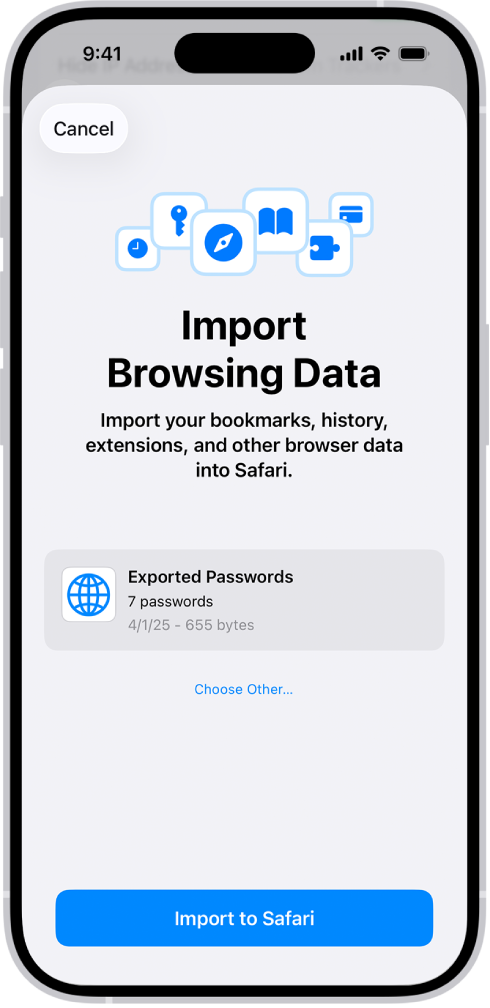
Importing passwords to your new password manager is a key step in the migration process. This step lets you move all your saved login details safely and quickly. The process involves finding the import feature and then uploading your saved password file or transferring data directly from your old manager. Follow simple steps to ensure a smooth transition.
Locate Import Option
Open your new password manager. Go to the settings or tools menu. Look for an option labeled “Import” or “Import Passwords.” Some apps place it under security or account settings. If you cannot find it, check the help section or user guide. This option allows you to bring in passwords from other sources.
Upload Csv Or Use Direct Transfer
Most password managers support CSV files for import. Export your passwords from the old manager as a CSV file first. Then, upload this file using the import feature. Some managers also offer direct transfer tools. These tools connect both managers and move passwords automatically. Choose the method your new manager supports and follow the prompts carefully.
Verify Imported Passwords
After importing your passwords into a new password manager, verifying them is essential. This step ensures no data loss and keeps your accounts secure. A thorough check helps prevent login issues later. Take the time to confirm all entries transferred correctly and function as expected.
Check For Missing Entries
Start by scanning your new password manager for any missing passwords. Compare the total number of entries with your old manager. Look for gaps or empty fields that may indicate incomplete imports. Pay special attention to frequently used sites and important accounts. Missing passwords can cause frustrating login failures and delays.
Test Logins On Key Sites
Next, test your passwords on a few important websites. Choose accounts you use daily or that contain sensitive information. Attempt to log in using your new manager’s autofill feature. Confirm the username and password fields fill correctly. Successful logins prove your passwords are accurate and ready for use. Fix any failures by updating or reimporting those entries.

Secure Old Password Manager
Securing your old password manager is a crucial step after migrating your passwords. It helps protect your sensitive data from unauthorized access. Leaving old passwords stored can expose you to risks. Taking the right actions ensures your digital safety remains intact.
Delete Stored Passwords
Start by deleting all stored passwords from your old manager. This removes sensitive information from the device or cloud. Check the settings or security options to find the delete or clear data feature. Confirm that all passwords, notes, and backup data are erased. This step prevents anyone from accessing your old passwords.
Uninstall Or Disable Old Manager
After deleting passwords, uninstall or disable the old password manager app. This stops the program from running or syncing data. Removing the app reduces security risks and frees up device resources. If you use a browser extension, disable or remove it from your browser. These actions make sure your old manager no longer stores or handles your passwords.
Enable Extra Security Features
Adding extra security features to your new password manager enhances your account protection. These features reduce the risk of unauthorized access. They create a strong defense against hackers and cyber threats. Enabling extra security helps keep your sensitive data safe and secure.
Set Up Two-factor Authentication
Two-factor authentication (2FA) adds a second step to your login process. After entering your password, you must provide a code from your phone or email. This extra step makes it harder for others to access your account. Many password managers support 2FA. Check your new password manager’s settings to activate it. Use an authentication app for better security than SMS codes. Setting up 2FA greatly improves your protection against hacking.
Enable Biometric Unlock
Biometric unlock uses your fingerprint or face to access the password manager. It is fast and secure. It prevents others from using your device to open the app. Most smartphones and computers support biometric features. Find the biometric unlock option in your password manager’s settings. Activate it for easy and safe access. This feature adds convenience without lowering security.
Troubleshoot Common Issues
Migrating passwords to a new password manager can face small problems. These issues slow down the process and cause frustration. Knowing how to fix common problems helps you move your passwords smoothly. Troubleshooting ensures your data moves safely and without loss.
Fix Import Errors
Import errors happen when the file format is wrong or data is missing. Check that your exported file matches the new manager’s format. Most managers use CSV files. Open the file with a text editor to look for broken lines or empty fields.
Clear any special characters that might cause the import to fail. Some password managers reject entries with unusual symbols. Save the file again and try importing it. If the error continues, split the file into smaller parts and import them one by one.
Handle Duplicate Entries
Duplicate entries appear when passwords repeat during migration. This makes your password list cluttered and hard to manage. Use the new manager’s built-in tool to find duplicates. Most apps offer an option to merge or delete repeated passwords.
If your new manager lacks this feature, export your passwords again. Open the file in a spreadsheet program. Sort the list by website or username to spot duplicates easily. Remove repeated entries manually before importing the file again.
Frequently Asked Questions
Can You Transfer Passwords From One Password Manager To Another?
Yes, you can transfer passwords between managers by exporting them as a CSV file and importing into the new one.
How Do I Import Passwords Into A Password Manager?
Export your passwords from the old manager as a CSV file. Open the new password manager’s import tool. Upload the CSV file and follow prompts to complete the import. Always verify imported passwords for accuracy and security.
How To Migrate Password Manager?
Export passwords from your current manager as a CSV file. Then, import this file into the new password manager’s import feature. Verify all passwords transferred correctly. Delete the exported CSV file for security. Follow specific app instructions for smooth migration.
Is It Hard To Switch Password Managers?
Switching password managers is generally easy. Export passwords as a CSV file, then import them into the new manager. Follow simple on-screen instructions.
Conclusion
Migrating passwords to a new manager takes careful steps. Always back up your data before starting. Export passwords securely from the old manager. Import them into the new manager carefully. Double-check that all passwords transferred correctly. Change any weak or duplicate passwords after moving.
Keep your password manager updated for better security. This simple process helps protect your online accounts. Stay organized and enjoy safer, easier password management.